01
Set Up Residential US IP
Install the app or configure the connection on the desktop device you want to test first.

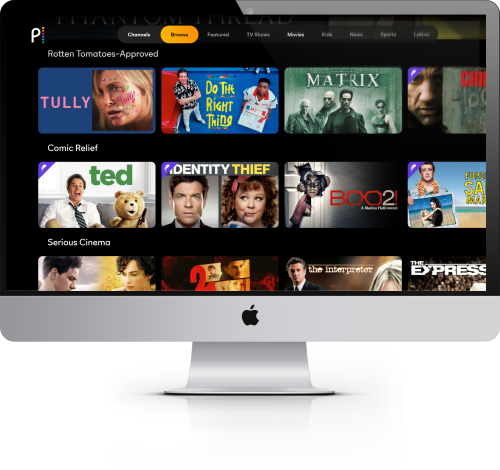

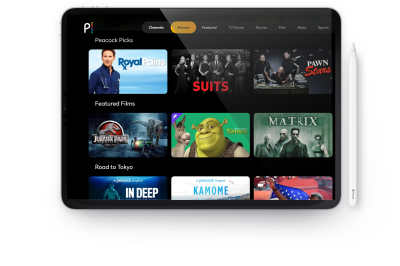

Trying to watch U.S. Peacock while outside the United States? Peacock access can depend on several signals at once: your IP location, Peacock account status, payment method, app-store region, device type, and Live TV home-network rules.
Residential US IP gives you a real U.S. residential IP connection. It helps with the network-location layer, but it does not include a Peacock subscription, create an account, change your billing country, or guarantee access to every title or plan.

Peacock’s U.S. streaming service is built around U.S. availability, U.S. content rights, U.S. billing, and U.S. location checks. Peacock may detect that your connection, payment method, app-store profile, or device location does not match the expected region.
This is why some users see location errors, anonymous proxy warnings, app-store problems, payment failures, or Live TV home-location messages even after installing a VPN. The IP address is important, but it is not the only signal Peacock can use.
A residential U.S. IP gives you a U.S.-based connection that looks closer to a normal household connection than many shared data-center VPN addresses. It does not override Peacock’s account, billing, device, or content rules.
Start with the simplest setup first. Test Peacock in a desktop browser before moving to a Smart TV, Roku, Fire TV, Apple TV, or router.
Install the app or configure the connection on the desktop device you want to test first.
Confirm that your public IP appears in the United States before opening Peacock.
Open a private or incognito window, or clear old Peacock cookies and site data.
Sign in and test on-demand playback before configuring mobile, TV, or router devices.
If Peacock still shows an error, check the account, payment method, browser location settings, app-store region, device location, and Live TV home-network requirements separately.
A residential U.S. IP is useful for the network-location part of Peacock access. It is not the same as a Peacock account, U.S. payment method, app-store profile, or Live TV home-network setup.
If Peacock plays in a private desktop browser, the network-location layer is probably working.
No VPN or IP service can guarantee Peacock access, payment acceptance, or every title and plan.
| Situation | Can a residential U.S. IP help? | What to check next |
|---|---|---|
| You already have a Peacock account and are travelling abroad | Yes, it can help your connection appear as a U.S. residential connection. | Test in a desktop browser first, then move to mobile or TV devices. |
| Peacock shows a proxy or location error | It may help if a blocked shared VPN or data-center IP is the cause. | Reconnect, clear browser or app data, confirm your public IP, and test again. |
| You need to create or pay for a Peacock account | It only helps with IP location. | Peacock account, billing, payment method, ZIP code, and gift-card rules may still apply. |
| You want Peacock + Live TV | It may help with the connection, but Live TV has stricter location rules. | Check Peacock’s home-network and local-channel requirements. |
| You cannot download the Peacock app | Not by itself. | Check the Apple App Store, Google Play, Roku, Fire TV, or TV account region. |
A residential U.S. IP is not a magic bypass, but it is a better fit than many shared data-center VPNs when you need a U.S. residential connection.
| Option | Typical IP type | Why Peacock may reject it | Result |
|---|---|---|---|
| Free VPN | Shared or overloaded VPN IP | Often used by many people and easy to flag. | High chance of errors or unstable playback. |
| Standard VPN | Data-center IP | Streaming services often detect repeated use from the same server ranges. | May work sometimes, but can be blocked. |
| Smart DNS only | No real U.S. IP change | May not satisfy all location, app, or account checks. | Useful for some devices, but not a complete solution. |
| Residential US IP | U.S. residential IP | Looks closer to a normal U.S. home internet connection. | Better fit when a U.S. residential IP layer is required. |
You are not limited to one device, but desktop should be the first test. Once Peacock works in a browser, move to mobile, Smart TV, streaming device, or router setup.
Windows and Mac give you the clearest way to confirm the public IP, use a private browser window, clear cookies, and separate network issues from app or account problems.
Mobile and TV devices can add extra signals such as app-store region, GPS, cached app data, device-account country, and router configuration.
For Smart TV, Apple TV, Fire TV, and Roku, use a compatible router or supported network method when the device cannot run the connection app directly.
Connect to the U.S. residential IP and test Peacock in a private desktop browser.
Open Windows GuideConfirm the public IP and separate browser checks from Apple account region issues.
Open Mac GuideCheck the connection, Apple App Store region, location services, and cached Peacock data.
Open iOS GuideTest the connection, then review Google Play country and device-location settings.
Open Android GuideChoose a Residential US IP plan after confirming that the service matches your setup.
Choose a plan based on how long you need the U.S. residential IP connection layer for Peacock testing, travel, and other U.S.-IP use cases. USip VPN and Peacock are separate subscriptions.
1 Month Pass
€15.99
€9.99/month after a 3-day trial.
6 Months Pass
€39/semiannually after a 3-day trial.
12 Month Pass
€69/year after a 3-day free trial.
Separate services: these prices are for the USip VPN Residential U.S. IP service only. A Peacock subscription, Peacock account, billing acceptance, and content availability are not included.
Peacock controls its subscriptions, pricing, promotions, billing, sports rights, live channels, and plan availability. These details can change, so confirm the current offer directly on Peacock before subscribing.
| Plan type | What to verify |
|---|---|
| Ad-supported access | Current monthly or annual price, content limits, ads, downloads, and eligibility. |
| Ad-reduced access | Which titles still contain ads, offline-download support, and any regional restrictions. |
| Live channels, sports, and add-ons | Event rights, local availability, device support, blackout rules, and account requirements. |
Residential US IP pricing is separate from Peacock pricing. USip VPN provides the U.S. residential IP connection layer only; a Peacock account or subscription is not included.
Start with the connection and browser before changing account, app-store, television, or router settings. Residential US IP provides the U.S. IP connection layer; Peacock controls account, subscription, device, and content rules.
Check your public IP before opening Peacock. Reconnect if the address is not shown as U.S.-based.
Open a private or incognito desktop browser session, sign in, and test ordinary playback.
Clear Peacock cookies and site data. Fully close the app and clear its cache where supported.
Review browser permissions, GPS, and device-location signals that may still expose an old location.
A working U.S. IP cannot create an eligible Peacock account or subscription. Review the account and billing status separately.
If the Peacock app is unavailable, review the Apple, Google Play, Roku, Fire TV, or TV account country.
If desktop works but a TV fails, focus on the app, device region, DNS, cache, or router configuration.
Live sports, local channels, specific titles, and supported devices can have separate availability or blackout rules.
Start with the general Peacock workflow above, then open the guide for your country to check local ISP, app-store, account, device, and Residential U.S. IP considerations.
| Country guide | Main issue | Open guide |
|---|---|---|
| United Kingdom | Peacock availability, app-store region, account, and device setup. | Peacock in the UK |
| Spain | Local ISP, payment, app-store, and streaming-device considerations. | Peacock in Spain |
| France | Residential U.S. IP testing plus account, app, and device checks. | Peacock in France |
| Germany | ISP, DNS, IPv6, app-store, router, and device-region troubleshooting. | Peacock in Germany |
More Peacock country guides can be added here as soon as dedicated pages are published.
Peacock is primarily a U.S. service. Access can depend on IP location, account status, subscription, device region, app-store availability, and content rights. A residential U.S. IP helps with the network-location layer only.
Many conventional VPNs use shared data-center addresses associated with many users. Peacock may also consider cookies, location permissions, app-store region, account information, and device signals.
No. It provides a U.S. residential IP connection. Peacock still controls accounts, subscriptions, payments, supported devices, sports rights, local channels, and title availability.
If you already have an eligible account, connect to a residential U.S. IP and test Peacock in a private desktop browser first. Then move to mobile or television devices.
Apple App Store, Google Play, Roku, Fire TV, Apple TV, and Smart TV stores can use the country assigned to the store or device account. An IP change alone does not change that setting.
The television or streaming device may use a different app region, DNS path, cache, location setting, or router configuration. Confirm desktop playback before troubleshooting the device.
No. Sports rights, blackouts, local channels, plan eligibility, and device support are controlled by Peacock and can differ by event or account.
No. USip VPN and Peacock are separate services. USip VPN plans provide access to U.S. residential IP addresses only.
Connect to Residential US IP, confirm your U.S. public IP, and test Peacock in a private desktop browser. If that works, move to your phone, tablet, Smart TV, Roku, Fire TV, Apple TV, or router.
Residential US IP provides the U.S. IP connection layer. Peacock subscription, billing, app-store region, device compatibility, and content availability remain controlled by Peacock.
3-day free trial · 14-day money-back guarantee · Peacock subscription not included