
Before you begin
An iPhone or iPad with access to the App Store and an internet connection. This guide does not configure Apple TV; TV-like devices use USip Smart DNS.
- An active USip VPN subscription or trial. OpenVPN Connect is the connection app; it does not include the USip service.
- Your connection username and password. Find these in the “Your Account is Ready” email.
- A working internet connection. Confirm that ordinary websites load before connecting.
The USip connection portal is for VPN setup. The Account page manages your subscription. Do not assume the two use the same login details.
An iPhone or iPad with access to the App Store and an internet connection. This guide does not configure Apple TV; TV-like devices use USip Smart DNS.
- An active USip VPN subscription or trial. OpenVPN Connect is the connection app; it does not include the USip service.
- Your connection username and password. Find these in the “Your Account is Ready” email.
- A working internet connection. Confirm that ordinary websites load before connecting.
The USip connection portal is for VPN setup. The Account page manages your subscription. Do not assume the two use the same login details.
1. Install OpenVPN Connect
- Open OpenVPN Connect on the App Store on your iPhone or iPad.
- Install OpenVPN Connect and open it.
- Review the initial notices, then add your USip profile using the next step.
OpenVPN Connect is the connection app. Your USip subscription, profile and connection credentials are supplied separately by USip.
2. Add or select your USip profile
If your USip profile is already listed, skip to step 3. Otherwise:
- Open the app’s profile area. In current versions, use Menu → My Profiles → Add; older versions may show Import Profile or a plus button.
- Choose URL and enter
us.vpnxl.com. - Continue and sign in with the USip connection credentials from your welcome email. Complete any browser sign-in and confirmation prompts.
- Confirm or add the imported USip profile when prompted.
If USip supplied an .ovpn file, use the app’s file-import option for that file instead. Exact labels depend on your version; see OpenVPN’s profile import instructions.
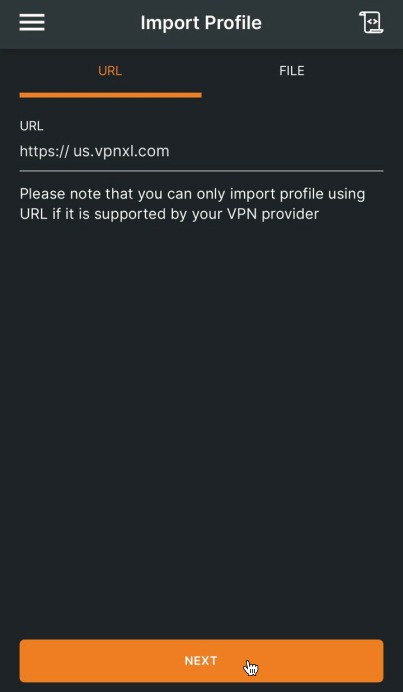
URL import in an earlier iPhone interface. Button names can vary between OpenVPN Connect versions.
3. Connect to USip VPN
- Select your USip profile and choose Connect or turn its connection switch on.
- If the app asks for a password again, enter your USip connection password.
- When iOS or iPadOS asks to add a VPN configuration, choose Allow and complete your device’s authentication prompt if requested.
- Wait for OpenVPN Connect to show Connected before using the VPN.
USip allows one VPN connection at a time. Disconnect an existing USip connection on another device before connecting here.
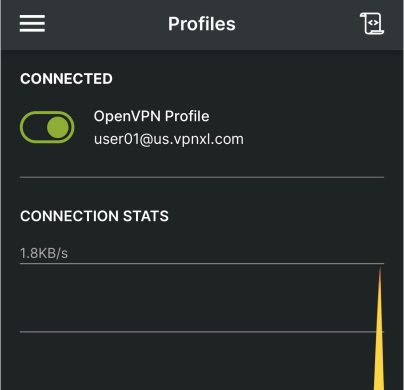
A connected profile in an earlier iPhone interface. Check the status in OpenVPN Connect on your own device.
4. Check your US IP address
- Confirm that OpenVPN Connect still shows Connected.
- Open ipinfo.io in the browser on this iPhone or iPad. Check that the public IP country is United States.
- If the country is not the United States, recheck the app’s connection status and try the troubleshooting steps below.
USip automatically assigns the US location. Your IP is not a permanent, fixed address, and individual city labels can differ between IP lookup services.
How to disconnect
Return to OpenVPN Connect, choose your USip profile and select Disconnect or turn its switch off. Your device then uses its regular internet connection.
Troubleshooting
I cannot find my connection credentials
Look for the “Your Account is Ready” email, including your spam folder. If it is missing, contact USip Support. Use your connection credentials rather than assuming your billing Account login will work.
The app says authentication failed
Re-enter the username and password from your welcome email and check for extra spaces. If the same credentials fail in the connection portal, contact Support.
No USip profile appears
Follow step 2 to add the profile using us.vpnxl.com. Import an .ovpn file only if USip supplied one.
The VPN will not connect
First check that your internet connection works without the VPN. Disconnect another active VPN, including a USip connection on another device, then retry. If it still fails, send Support the exact error, your device/OS version and OpenVPN Connect version.
A certificate or verification error appears
Keep certificate verification enabled. Contact USip Support with the exact error so the profile or certificate can be checked. Do not disable verification or add settings from an unrelated VPN guide.
I did not allow the VPN configuration
Return to OpenVPN Connect and try connecting again. Allow the expected VPN configuration request and complete device authentication if asked. If your device is managed and the request is blocked, ask the device administrator.
The VPN is connected, but a streaming service will not play
First verify your US IP using step 4. Playback can also depend on the streaming account, subscription, device, app or service restrictions. Check the USip streaming guides, then contact Support with the service name and exact message. A successful VPN connection does not guarantee every title will play.
iPhone and iPad setup FAQs
Is OpenVPN Connect the same as USip VPN?
No. OpenVPN Connect is the app. USip VPN supplies the VPN service, connection credentials and profile that route your connection through US home broadband.
Where do I get my USip username and password?
Use the connection details in your “Your Account is Ready” email. If you cannot find them, contact USip Support. The billing Account page is separate from the VPN connection portal.
Do I need to import the profile every time?
No. Once the USip profile is installed, select it in OpenVPN Connect and connect. Import it again only if it is missing or USip asks you to use an updated profile.
Does this guide also configure Apple TV?
No. These steps configure OpenVPN Connect on iPhone and iPad. USip uses Smart DNS on TV-like devices, entered on the TV or router. Contact USip Support for Smart DNS setup help.
Can I choose a US city or keep a fixed IP?
No. USip assigns the US location automatically and does not provide a permanent fixed IP. Reconnecting within 15 minutes gives you the same address; your assigned public IP is used by one USip customer at a time.
How do I know the setup worked?
OpenVPN Connect should show Connected, and an IP lookup in your device’s browser should show United States. Check both. If the app is connected but the country is wrong, use the troubleshooting steps or contact USip Support.
REAL US HOME BROADBAND
Try USip VPN free for 3 days
Choose your billing period. US$0 due today.
MONTHLY BILLING
Monthly
US$15.99US$9.99 / month
Billed monthly after your trial
Then US$9.99 every month
SIX-MONTH BILLING
Six months
US$6.50 / month
Monthly equivalent
Then US$39 every 6 months
LOWEST MONTHLY RATE
Annual
US$5.75 / month
Monthly equivalent
Then US$69 every year
Included in every plan
- Residential US IP
- One connected VPN device
- Automatic US location
- No USip VPN data or speed cap
US$0 due today. Payment method required. After your trial, your selected plan renews automatically at the price and billing interval shown until canceled. Cancel before the trial ends to avoid the first charge.
All prices in USD. Streaming subscriptions sold separately. 14-day refund policy
Streaming services require your own account and any applicable subscription. For TV setup, follow the USip Smart DNS guide.
Official app instructions
This guide explains the USip-specific connection flow. For the current app interface and platform requirements, see:
- OpenVPN Connect installation instructions for iPhone and iPad
- OpenVPN Connect: import a profile
- OpenVPN Connect on the App Store
App screens and button labels can change between releases. Follow the current app prompts if they differ from the screenshots.